Real-time key display
Keys appear on screen the moment you press them, then fade out smoothly after a configurable hold time once released.
Key input overlay for screen recordings
An overlay app that always shows the keys you're currently pressing while recording Unity/Blender tutorials and walkthroughs. It can also show your mouse cursor position, clicks, and drag trails.
A global keyboard/mouse hook keeps working even while Unity/Blender has focus. Only things that are safe to show end up on your recording.
Keys appear on screen the moment you press them, then fade out smoothly after a configurable hold time once released.
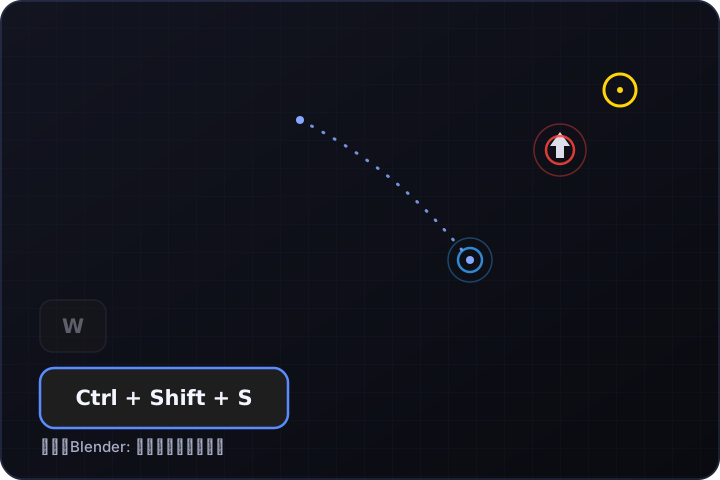
Combos like Ctrl + Shift + S are merged into a single key cap instead of three separate ones.
While Blender or Unity is the focused app, a short description of what the pressed key does in that app appears alongside it (can be toggled off).
By default, key display turns off whenever a window other than Blender/Unity has focus — a safety net so chat windows or password fields don't accidentally end up on your recording (this can be disabled in settings).
The mouse cursor position can always be highlighted with a ring, making it obvious where you're looking and working.
Clicking shows a ripple effect at that spot. Right-clicks can use a different color from left/middle clicks, so viewers can tell "executing an action" apart from "opening a menu" at a glance.
Scrolling the wheel briefly shows an up or down arrow at the cursor position.
Dragging with a button held down draws the path as a line that fades out on release — great for showing orbit/pan gestures like viewport rotation.
The overlay never intercepts clicks, so it never gets in the way of your work in Unity/Blender underneath it (can be disabled in settings if you prefer).
Position (screen corner), margins, font size, hold time, max visible keys, background/text/accent colors — all adjustable on the fly from the settings window.
Ctrl+Alt+P pauses key display, cursor highlight, and click ripples all at once. A persistent "Paused" badge stays on screen while paused, so you never forget it's off.
Built with Tauri for a lightweight overlay app that runs on both Windows and macOS.
Install it, then just keep working in Unity/Blender as usual.
Once launched, it lives in your system tray (or menu bar on macOS).
Keys you press appear on screen automatically. If enabled, the cursor highlight and click ripples show up too.
Use "Open Settings..." to adjust position, colors, and timing to your liking. Changes apply live.
All of the following can be changed live from the tray menu and settings window. Click a group to expand it.
| Setting | Description | Default |
|---|---|---|
| Position | Which screen corner the key caps are shown in | Bottom-left |
| Margin (X/Y) | Distance from the edge of the screen | 40px / 60px |
| Font size | Text size on the key caps | 22px |
| Setting | Description | Default |
|---|---|---|
| Background color | Key cap background color | #1e1e1e |
| Background opacity | Opacity of the key cap background | 0.9 |
| Text color | Key cap text color | #ffffff |
| Accent color | Border color while a key is held down | #5a8cff |
| Setting | Description | Default |
|---|---|---|
| Hold/fade duration | Time it takes a key to fade out after being released | 700ms |
| Max visible keys | Maximum number of keys shown at once (oldest ones disappear first) | 8 |
| Setting | Description | Default |
|---|---|---|
| Click-through | Whether the overlay is click-through (so it never blocks Unity/Blender input) | ON |
| Overlay visible | Show/hide the overlay itself | ON |
| Shortcut hints | Show/hide the Blender/Unity shortcut description (shared toggle) | ON |
| Hide outside target apps | Safety toggle that hides key display when a non-Blender/Unity app has focus | ON |
| Setting | Description | Default |
|---|---|---|
| Cursor highlight | Whether to always show a ring highlight at the cursor position | ON |
| Cursor highlight color | Color of the cursor ring | #ffd60a |
| Click effects | Show/hide click ripples. This same toggle also controls the wheel scroll indicator and drag trail display | ON |
| Click effect color (left/middle) | Ripple color for left- and middle-clicks | #ff453a |
| Click effect color (right) | Ripple color for right-clicks; can be set differently from left/middle for easy visual distinction | #3aa5ff |
The pause hotkey (Ctrl+Alt+P) is currently fixed and cannot be changed from settings. Settings are saved to config.json (Windows: %APPDATA%\com.nunifuchisaka.keydisplay\config.json, macOS: ~/Library/Application Support/com.nunifuchisaka.keydisplay/config.json).
Please check these points before installing.
The overlay currently only appears on your primary display. In multi-monitor setups, key display and cursor highlighting cannot be shown on a secondary monitor.
The pause hotkey (Ctrl+Alt+P) is currently fixed. If it conflicts with another app's shortcut, toggle pause manually from the tray menu instead.
Global keyboard monitoring requires Accessibility permission. Detecting whether Blender/Unity is focused (for shortcut hints) may also require Screen Recording permission.
Because of how global keyboard hooks work, a key-release event can very rarely be missed, leaving a key stuck showing as "held". Use "Clear display" from the tray menu to instantly reset it.
Behavior may vary depending on your environment. In particular, macOS (cursor alignment on Retina displays), scroll wheel direction detection, and the pause hotkey haven't been fully verified on real hardware yet. We recommend a short test run in your own environment before relying on it for a recording.