Pin the space around you with threads cast from your fingertips. Silver rings light up and threads shoot from your fingers; swing your arm and 24 threads are strung through the area around you while rose petals rain down. Cut them one at a time with a finger gun, or bring them all down at once with a shockwave. A gimmick for VRChat avatars.
VRChat / Modular AvatarPC only11 bits of synced parameters
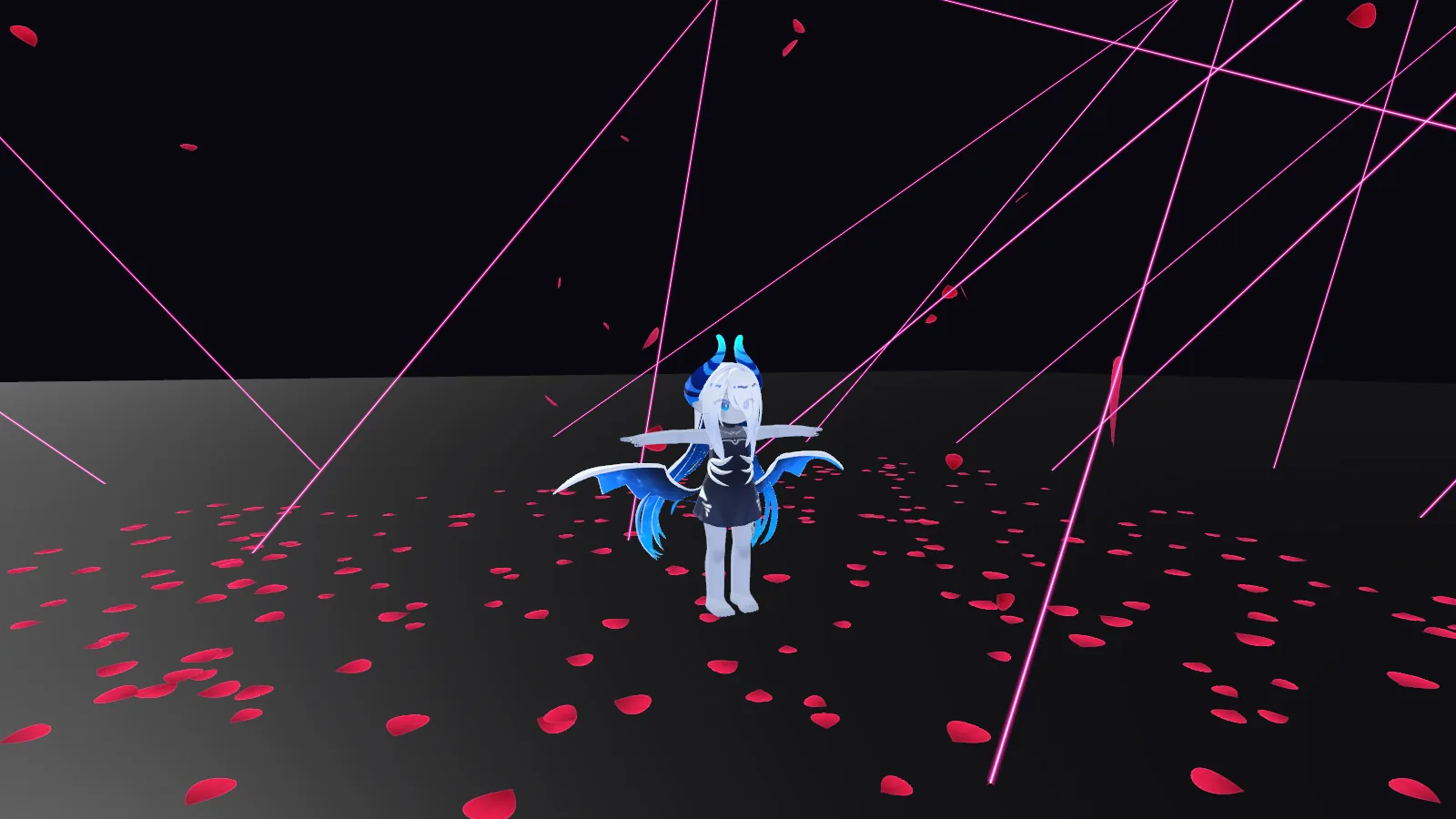
Swing your arm and 24 threads are pinned into the space around you, while petals keep falling from above and pile up on the floor.
Features
One continuous effect, from ring to room
The rings light up, threads extend from your fingertips, and a swing of the arm fixes the threads in space. Finish by bringing them all down with a shockwave. Touching a thread does not cut it; only the finger gun and the shockwave do.
Metal rings
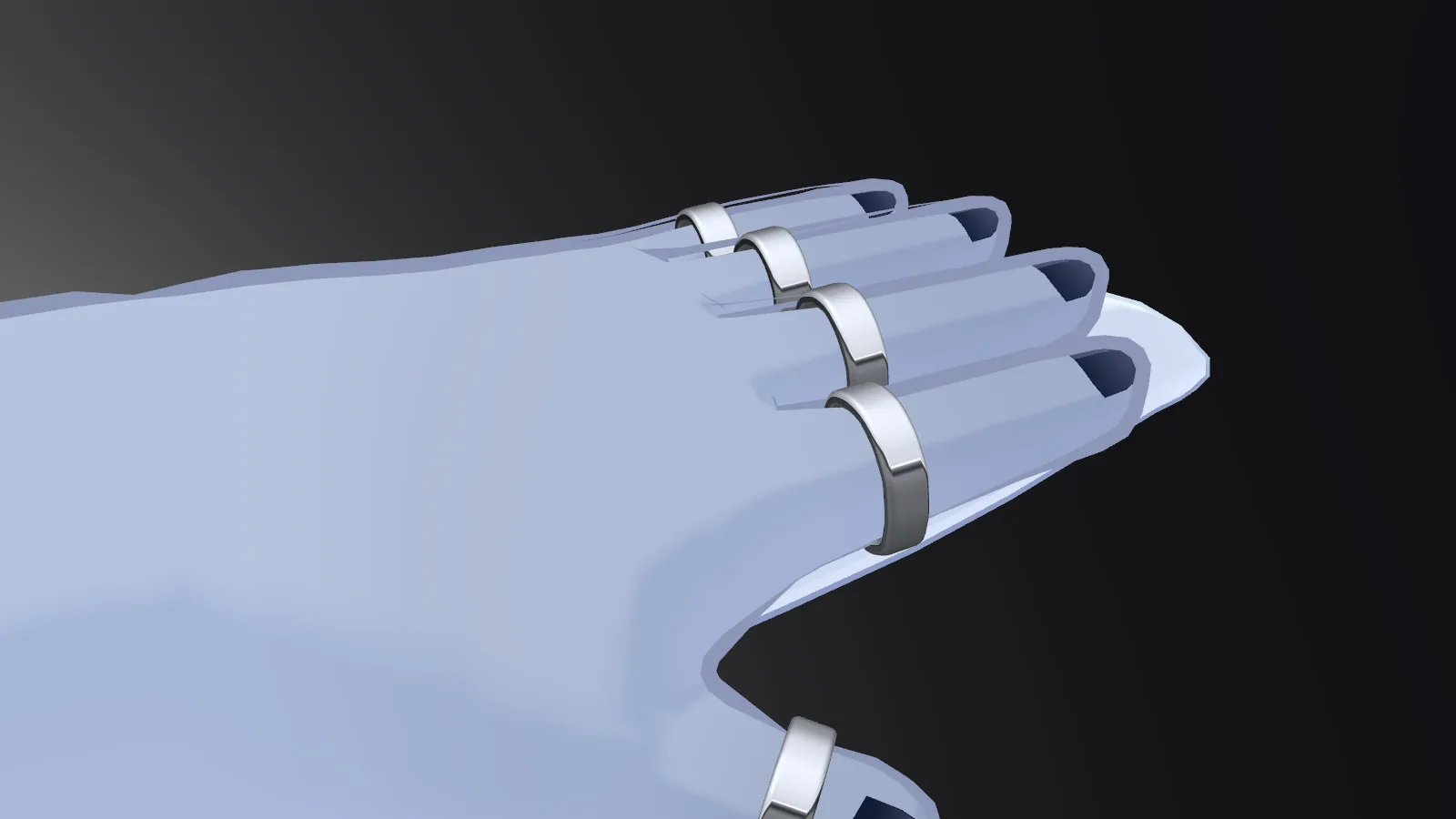
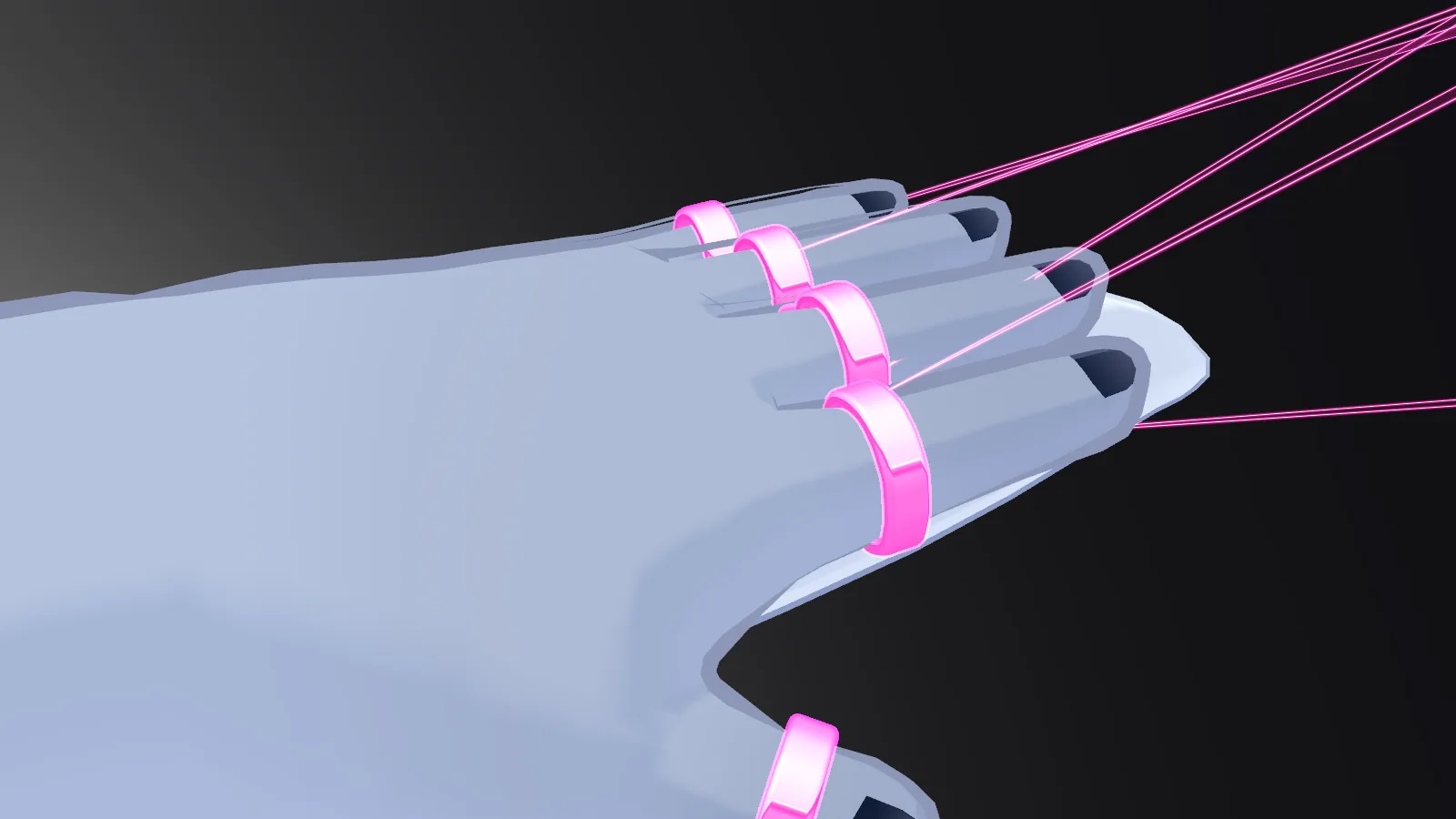
Silver, band-shaped rings on all 10 fingers. They stay metal until you fire; then a magenta (deep pink) glow overlays the whole ring within 0.5 seconds, and swinging your arm returns it to metal in 0.15 seconds. They never go black, even in dark worlds.
Finger threads
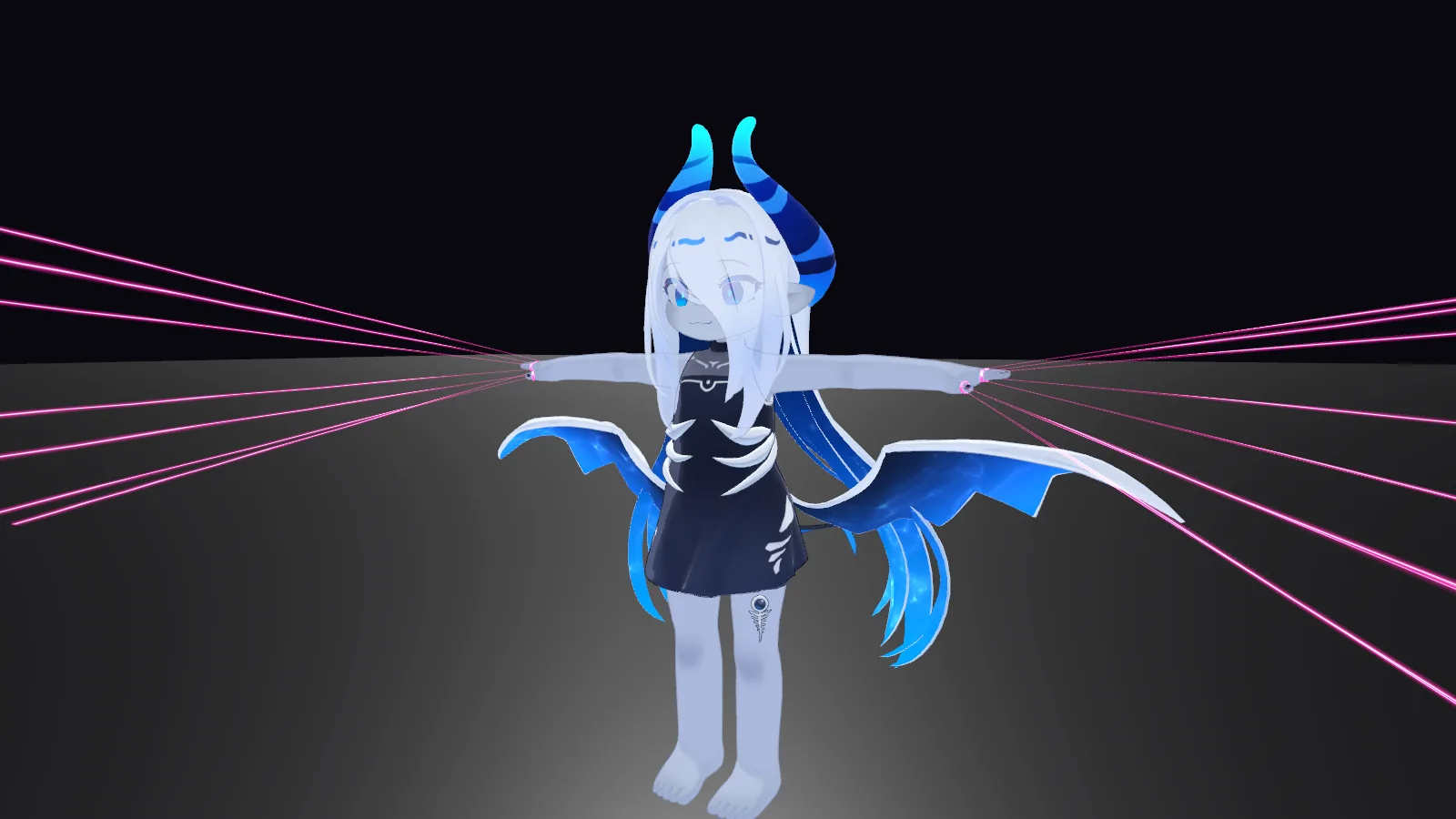
Fire with both hands open (gesture 2) and 7 threads per hand, 14 in total, extend in a bundle of about 15 degrees in the direction of your fingertips. The tips stay fixed where you fired, and only the roots follow the rings, so the threads stay straight even as you walk or bend your fingers.
Space threads
Swing your arm and the finger threads disappear, replaced by 24 threads (20 m long) that pierce the floor at scattered points 1 to 6 m around you and rise at a slant. They are fixed in the world and stay even if you walk away, and everyone sees the same arrangement.
Rose petals
Petals keep falling from 6 m above and pile up on the world's floor (Colliders). After landing they lie flat and come to rest. Up to about 990 petals accumulate, and the oldest ones disappear first.
Cut one at a time with a finger gun
From 0.65 seconds after the space threads appear, make a finger gun (6) with one hand and swing the same arm to turn exactly one thread white and drop it. The order is fixed and synced, so other players see the same order.
Shockwave
From 1.0 second after the space threads appear, put one hand in front of your chest as a fist (1), pull it away, and within 0.4 seconds sweep the same hand sideways open (2). A shockwave that distorts the background spreads out from you, and all remaining threads turn white and fall.
Back mark
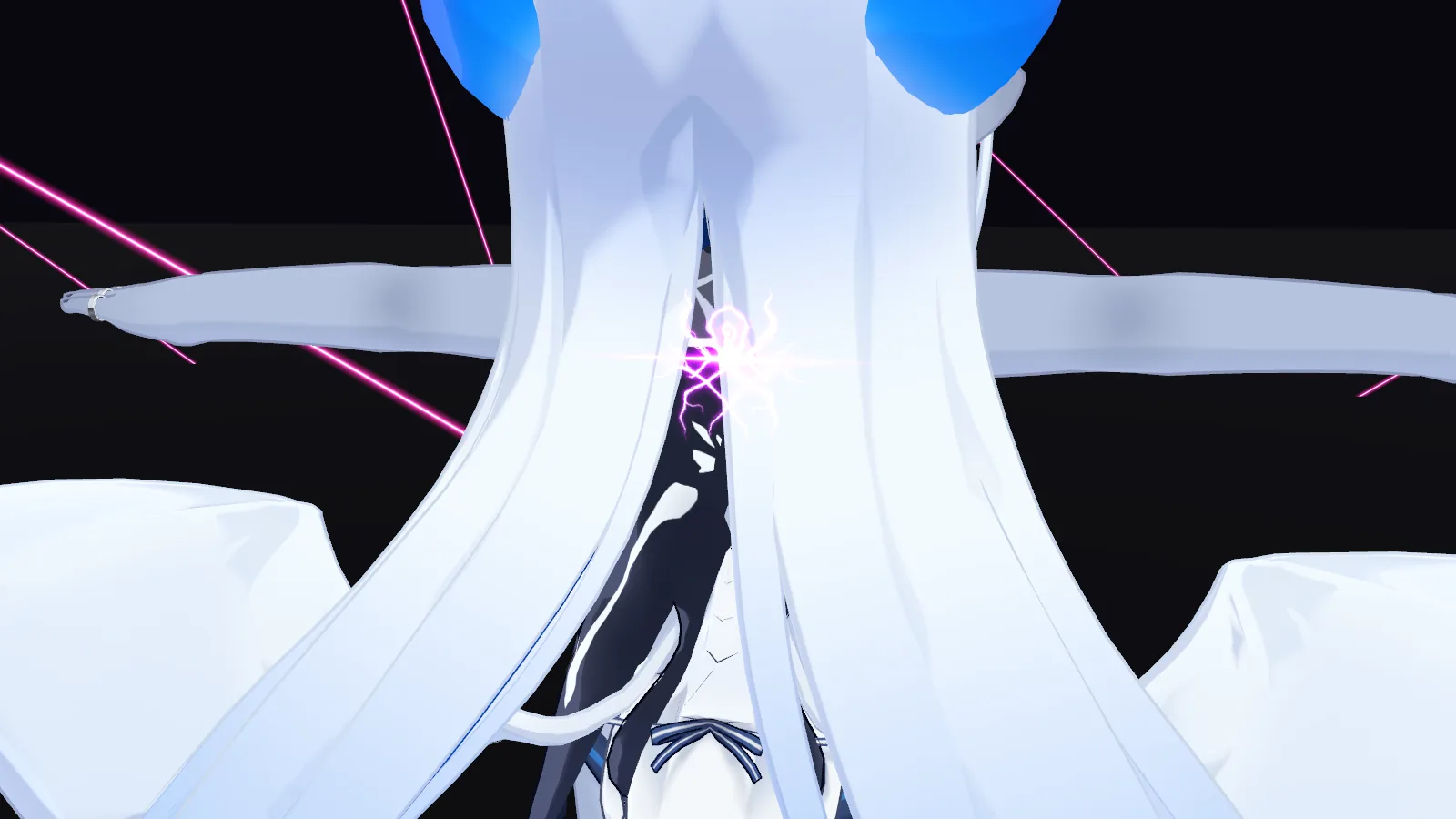
The moment you fire, a purple glowing spider crest appears between your shoulder blades. It stays visible even where it would be buried in opaque hair or clothing, and disappears 0.15 seconds after the shockwave.
Easy setup
Modular Avatar support. Place the prefab directly under your avatar and the menu (a single SpiderWeb → Mode toggle) and the FX are merged automatically. A menu item is included to fit the back mark to your body.
Rings at rest. Silver metal bands.Rings when fired. The whole ring glows magenta (deep pink) and threads extend from the fingertips.Finger threads. With your arms spread, threads extend from your fingertips in bundles.Back mark. Visible even where it sits inside the hair.
Setup
Setup
Place the prefab, align the rings, and run three menu items in order. That's it.
Prerequisites. A project with the VRChat SDK3 (Avatars) and Modular Avatar 1.15 or later installed through the VRChat Creator Companion.
Import the unitypackage
Import the purchased unitypackage into your project. It installs to Assets/Nunifuchisaka/SpiderWeb/.
Place the prefab on your avatar
Drag Assets/Nunifuchisaka/SpiderWeb/SpiderWeb.prefab into the Hierarchy directly under your avatar (the object with the VRC Avatar Descriptor).
Align the rings
The rings are inside SpiderWeb, in the form Finger_<L/R>_<finger>/Ring_<L/R>_<finger> such as Finger_L_Thumb/Ring_L_Thumb (fingers: Thumb, Index, Ring, Little). The middle finger is the exception: Wrist_L/Ring_L and Wrist_R/Ring_R.
Each ring automatically follows its finger bone, so just adjust the Transform position and rotation until it sits near the base of that finger. Do not change Scale (the finger threads are children of the ring and would be scaled with it; behavior with a changed Scale has not been verified).
The rings are hidden while editing. Turn on the GameObject's Active check only when you want to see them, and turn it off again afterward. What is shown at runtime is decided by the animations, so forgetting to turn it off does not change behavior.
Re-fit the threads to the rings
Select your avatar in the Hierarchy and run Tools/Nunifuchisaka/SpiderWeb/Refit Selected Avatar Threads. It re-fits the position and direction of the finger threads to the rings you adjusted. Run it every time you move a ring. Save the scene before running it the first time. A <scene name>_SpiderWeb folder is created next to the scene to store the thread meshes made for that avatar. Include this folder when you move the avatar to another project.
Fit the back mark to your body
With the avatar selected, run Tools/Nunifuchisaka/SpiderWeb/Fit Back Mark To Selected Avatar. It sets the height, size, and depth of the back mark automatically from your body shape (chest-to-neck height, shoulder width, and the surface of your back).
Check the Contact count
Run Tools/Nunifuchisaka/SpiderWeb/Validate Avatar Contact Budget to confirm the avatar's total Contact count is within the limit (256). SpiderWeb uses 2 Receivers.
Save the scene and upload
Save the scene and upload your avatar as usual.
Usage
Usage
Turn it on from the Expressions menu, then fire with gestures. Gesture numbers are VRChat's standard ones.
1Fist
2Open hand
6Finger gun
Turn Mode on
In the Expressions menu, go to SpiderWeb → Mode and turn it ON.
Get ready and fire
Make fists (1) with both hands to get ready, then open both hands (2) to fire. The rings light up, the finger threads extend, and the back mark appears.
If either hand holds a gesture other than 1 or 2 for 0.15 seconds or longer while you are getting ready, the preparation is canceled. Start over from both fists.
Swing your arm
From 0.5 seconds after firing, swing an arm. The finger threads disappear and the 24 space threads and the petals appear. The space threads stay fixed in place even when you walk away.
Cut one at a time with the finger gun
From 0.65 seconds after the space threads appear, make a finger gun (6) with one hand and swing the same arm to drop exactly one thread. To drop the next, either bring your arm back or release the gun, then swing again.
Drop them all with the shockwave
From 1.0 second after the space threads appear, put one hand in front of your chest as a fist (1). Pull that hand away, and within 0.4 seconds sweep the same hand sideways open (2). The shockwave brings all remaining threads down.
If you don't swing, the threads stay as they are and you can get into the stance again.
Clear and start over
Make fists (1) with both hands to clear the threads and petals and return to the ready state (except while you are in the shockwave stance). Open both hands (2) from there to fire again. Turning Mode OFF clears everything immediately.
Ways to bring the threads down
Method
Available from
Action
Result
Finger gun
0.65 s after the space threads appear
Make a finger gun (6) with one hand and swing the same arm
One thread turns white and falls per swing, in a fixed order that other players see in the same order
Shockwave
1.0 s after the space threads appear
Fist (1) in front of the chest, pull that hand away, then within 0.4 s sweep the same hand sideways open (2)
A background-distorting shockwave spreads out from you, and all remaining threads turn white and fall
There is no time limit. Once triggered, everything stays until you turn Mode OFF or clear it with both fists. Touching a thread does not drop it (only the finger gun and the shockwave do).
Adjust
Adjustments
The color and brightness of the threads and rings are fixed (there are no menus or dials for them). To change the look, open a group below and adjust the relevant material or Transform.
Back mark position BackMark
First run Fit Back Mark To Selected Avatar. To adjust by hand, edit the Transform of SpiderWeb/BackMarkAnchor/BackMark under your avatar.
Field
Description
Position Y
Height
Position Z
Front-to-back. Negative values are toward the back
Scale
Size. The default is 0.4 m wide by 0.2 m tall
BackMarkAnchor only snaps to the chest, so do not move it. To check the position, temporarily turn on the Active check of BackMark, and turn it off again afterward (forgetting to do so does not change behavior).
The mark is hidden by hair or clothing SpiderWebBackMark.mat
Adjust the properties of Material/SpiderWebBackMark.mat.
Property
Default
Description
_DepthPull
0.3
How far (in meters) the mark is pulled toward the camera. Set it to the thickness of the hair plus some margin. Its position and size on screen do not change
_GrazingFade
0.3
How much the mark is suppressed when viewed at a steep angle. 0 disables it
If _DepthPull is too high, the mark may be drawn over arms and the like when seen from the side. _GrazingFade can reduce that.
Shockwave SpiderWebShockwave.mat
Adjust the properties of Material/SpiderWebShockwave.mat.
Property
Description
_Distortion
Strength of the distortion. Lower it if the distortion from your own view bothers you
_RimPower
How strongly the distortion is concentrated toward the edge
Petal color SpiderWebPetal.mat
Adjust the properties of Material/SpiderWebPetal.mat.
Property
Description
_Color
Color at the base of the petal
_TipColor
Color at the tip of the petal
_EdgeColor
Color of the glowing edge
_BackfaceTint
Tint of the back face
_EdgeGlow
Strength of the edge glow
_Sheen
Soft sheen
_Iridescence
Subtle color shift depending on the viewing angle
Worlds with water Render Queue
The threads use Render Queue 3100 and the shockwave 3110, so they are drawn after ordinary transparent objects (3000).
If threads are hidden in a world whose water is drawn at 3100 or later, set the Render Queue of the thread materials (SpiderWebThread.mat and SpiderWebCurve.mat) higher than the water, and the shockwave later still.
Generation menus are not for normal use. The Create ... items and Rebuild All Assets under Tools/Nunifuchisaka/SpiderWeb/ are for regenerating the product. They reset the materials and settings you have adjusted to their defaults, so do not use them for normal setup or adjustment.
Notes
Notes and limitations
Please check these before buying or setting up.
PC only (no Quest)
Quest (Android) is not supported, because the product uses custom shaders and background distortion (GrabPass).
Performance rank: Medium or lower
Because the petals use particle collision, the avatar's performance rank will be Medium or lower. The petals number up to 1000 (32 triangles each), and 14 VRC Position Constraints are used to pin the tips.
Check the overall rank of your avatar on Unity's upload screen.
11 bits of synced parameters, 2 Receivers
The synced parameters total 11 bits (the Mode Bool, the arm-swing and shockwave Bools, and an Int for the number of threads dropped). There are 2 Contact Receivers (the left and right sensors in front of the chest).
The floor height is set by where you stand
The space threads are laid out using the height of your feet at the moment of triggering as the floor. They do not follow the actual shape of the floor, such as stairs or slopes.
How the petals pile up
Petals land on the world's floors, walls, and furniture Colliders and pile up. They fall through floors that have no Collider and disappear after 66 seconds. They do not collide with players.
After a shockwave, the petals already piled on the floor remain for up to 66 seconds (new petals stop).
The sensors in front of the chest
Depending on your body shape, the sensors in front of the chest may not line up (for example, false triggers when you fold your arms or clap, or no response when you take the stance). If this bothers you, please get in touch.
How other players see it
Other players see the same effect through the synced gestures. However, network delay can make the timing slightly off.